There is 2 types of RAID: Software based and hardware based
Software: Uses OS resources. Low on performance.
Hardware: High on performance. More expensive, but more reilable. Uses dedicated PCI Express card. Have NVRAM for cache to rw.
Raid levels
RAID 0: Striping
RAID 1: Mirroring
RAID 5: Single disk distributed parity
RAID 6: Double disk distributed parity
RAID 10: Combine or Mirror & stripe (Nested RAID)
-
RAID IS NOT BACKUP
Here’s one important caveat about RAID and backup. Although RAID writes data to two disks simultaneously, it is not a backup. If your operating system or software, rather than the hard disk, corrupts your data, this corrupted data is sent to both disks and simultaneously corrupts both drives. However, a backup is a copy of data, which is stored somewhere else and is detached from the original data both in space and time. Backup data is not corrupted unless you specifically back up corrupted data. In short, even if you use RAID, you still must use an effective backup software.
RAID 0
=======================
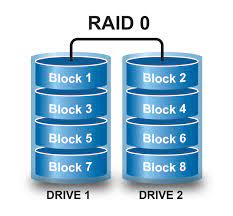
It strips the data into multiple available drives. In other words, it split data and write each data to different drive.
- Faster rw. Because every drive has its own I/O.
- No fault tolerance. No redundancy.

RAID 1
=======================
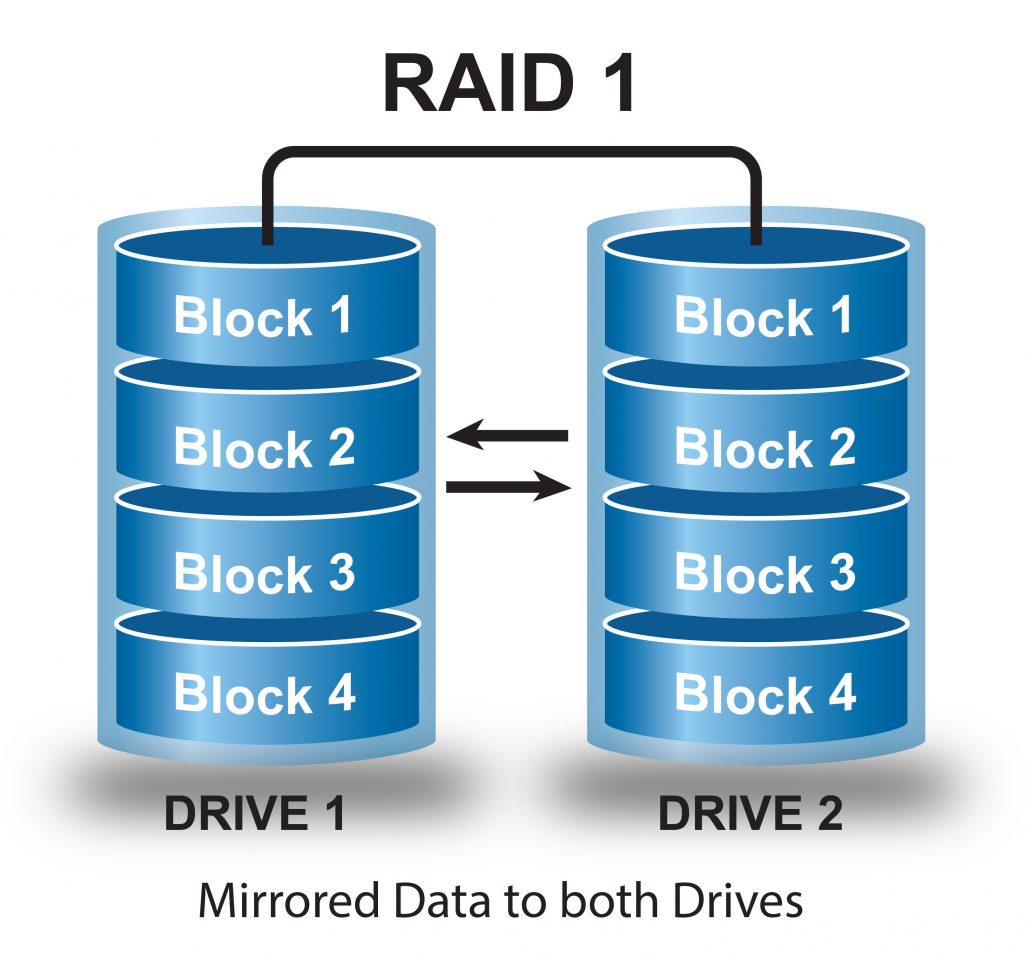
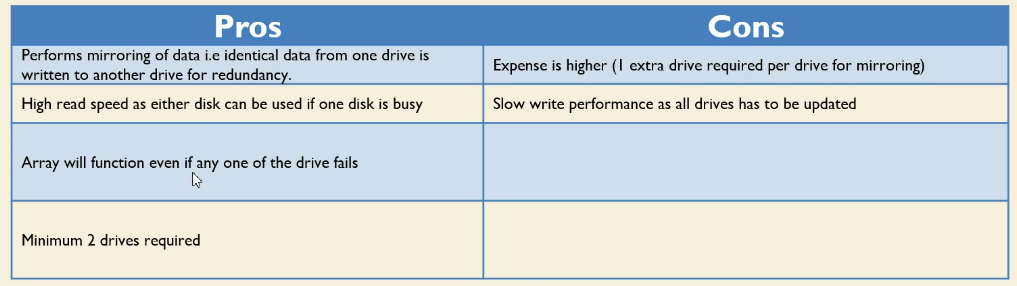
It mirrors the data in all drives. Meaning, if you have 3 drive, both have the same data at the same time.
- %100 redundancy
- Too expensive
- Consumes too much space
RAID 5
=======================
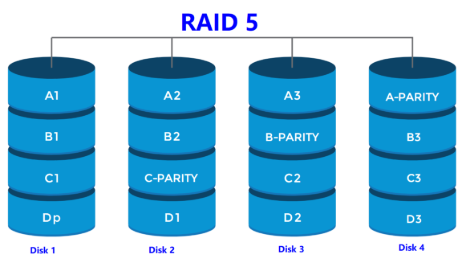
Raid 5 uses parity to protect data. It will use ‘n-1’ disk for parity and with the use of parity, you can rebuild the data even though a drive is failed.
- Uses n-1 disk for storage
- Can survive from a single drive failure, but more drive failure will cause data loss
- Excellent performance, high speed
- Average writing, slow if no Hardware RAID controller
- Full fault tolerance
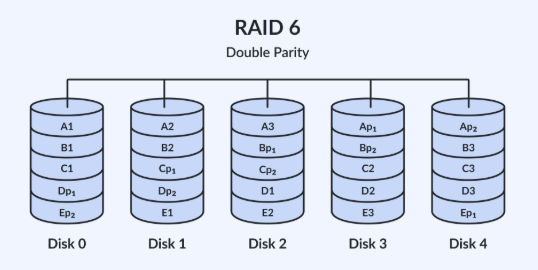
RAID 6
=======================
Raid 6 also uses parity, but it is fault tolerant up to 2 disk failures. Uses 2 disks as parity.
- Minimum 4 drives, even if 2 drives fail, can rebuild data.
- Very slower than RAID 5, becase it writes data to all 4 drives at the same time. Average speed while using h/w RAID controller.
RAID 10
=======================
It uses both mirroring and striping. It is combination of RAID 1 and RAID 0, but you can configure RAID 10 as 1+0 or 0+1 and these are differ.
In 1+0, first mirror then stripe and vice versa in 0+1. 1+0 is better than 0+1
-
In both, you can use 50% of the storage
-
Main differences bitween 0+1 vs 1+0
Main difference between RAID 10 vs RAID 01
- Performance on both RAID 10 and RAID 01 will be the same.
- The storage capacity on these will be the same.
- The main difference is the fault tolerance level. On most implementations of RAID controllers, RAID 01 fault tolerance is less. On RAID 01, since we have only two groups of RAID 0, if two drives (one in each group) fails, the entire RAID 01 will fail. In the above RAID 01 diagram, if Disk 1 and Disk 4 fails, both the groups will be down. So, the whole RAID 01 will fail.
- RAID 10 fault tolerance is more. On RAID 10, since there are many groups (as the individual group is only two disks), even if three disks fails (one in each group), the RAID 10 is still functional. In the above RAID 10 example, even if Disk 1, Disk 3, Disk 5 fails, the RAID 10 will still be functional.
- So, given a choice between RAID 10 and RAID 01, always choose RAID 10.
https://www.thegeekstuff.com/2011/10/raid10-vs-raid01/
Software RAID Configuration
mdadm: Command for software RAID
mdadm --create /dev/md0 --level=0 --raid-devices=2 /dev/sdd /dev/sde : sdd ve sde’yi kullanarak RAID0 bir md0 diski yarat
mdadm --detail [/dev/md0] : Show RAID details
cat /proc/mdstat : Show RAID configuration
mdadm --stop /dev/md1 : Stop RAID
mdadm --zero-superblock /dev/sd[ab]1 :This removes the RAID metadata (superblock) from the partitions.
Note: After creating new RAID logical volume, you need to format and mount it.
NOTE: Normally, after a reboot software RAIDs are deleted. To make it permanent, use this command:
sudo mdadm --detail --scan | sudo tee -a /etc/mdadm/mdadm.confsudo update-initramfs -u
blkidto find UUID for /etc/fstab
NOTE
If you’re syncing a large array for the first time, it may take hours.
To monitor progress:
watch cat /proc/mdstat
For testing purposes, use mdadm /dev/md1 --fail /dev/sdh for set a disk as faulty
After a disk being faulty, you need to complete these steps in order to recover.
-
See the faulty disk with command
mdadm —detail /dev/md1
-
Then, remove the faulty disk
mdadm /dev/md1 -r /dev/sdh
-
Lastly, replace the disk
mdadm /dev/md1 -a /dev/sdh
- After 1 disk corrupt, data is still accessible without any invervention. You can mount and access the data.
- -r stands for remove and -a stands for add
- After removing and adding disk, the status of disk in RAID will be shown as “spare rebuild”. After a short period of time, the RAID will be up.
🔥 Step-by-Step: Wipe and Recreate RAID1
🧼 1. Stop and Zero the Existing Array
sudo umount /dev/md127 2>/dev/null sudo mdadm --stop /dev/md127 sudo mdadm --zero-superblock /dev/sd[ab]1
This removes old RAID metadata from both drives.
✅ 1. What does zero-superblock do?
sudo mdadm --zero-superblock /dev/sd[ab]1
This removes the RAID metadata (superblock) from the partitions.
-
When you create a RAID with
mdadm, it writes metadata (superblock) to the disks. -
Even if you delete or stop the array, this metadata stays.
-
If you reuse the disks later without wiping the superblock, the system may:
-
auto-assemble an old array
-
or complain about conflicting metadata
-
So: it’s necessary if you’re recreating the array from scratch.
✅ 2. Do you need wipefs?
Only if you want to fully erase partition table and signatures (e.g., LVM, filesystems, etc.).
-
mdadm --zero-superblockonly clears RAID metadata. -
wipefs -a /dev/sdXremoves all filesystem/RAID signatures.
You don’t strictly need wipefs if:
-
You already have partitions like
/dev/sda1,/dev/sdb1 -
You’re only redoing the RAID
Use
wipefsonly if you want a fully clean disk (no partitions, no filesystem signatures).
🧾 2. (Optional) Clear Partitions
If you want clean disks:
sudo wipefs -a /dev/sda sudo wipefs -a /dev/sdb
Then repartition if needed:
sudo cfdisk /dev/sda sudo cfdisk /dev/sdb
Create a single large partition on each (/dev/sda1, /dev/sdb1).