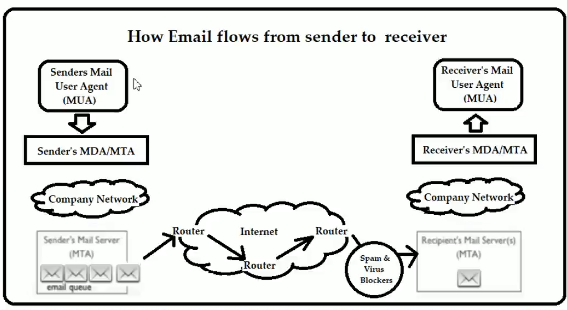
MUA (Mail User Agent): Used to see & compose emails like Thunderbird. MDA (Mail Delivery Agent): Distributes received emails to the appropriate mailbox. Also used in same-domain emails without the need of MTA. MTA(Mail Transfer Agent): Transfers the mail from one side to another side over Internet, like Postfix.
For real-world email hosting, most people use Mailcow, iRedMail, or Mail-in-a-Box — they bundle Postfix + Dovecot + all extras with sane defaults.
Default location for mails: /var/spool/mail
Email Retrieval Protocols: IMAP vs. POP
Both IMAP (Internet Message Access Protocol) and POP (Post Office Protocol) are used by email clients (like Thunderbird) to retrieve emails from a mail server. The key difference lies in how they handle mail storage and synchronization.
Which to choose?
For modern email usage with multiple devices, IMAP is almost always the preferred and recommended choice. POP is generally only chosen for very specific, single-device, offline-first scenarios or if the mail server doesn’t support IMAP.
1. POP (Post Office Protocol - Version 3, POP3)
- Analogy: A traditional post office box. You go, pick up your mail, and it’s then removed from the post office.
- Key Behavior:
-
Downloads: Downloads new emails from the server to one device (your computer).
-
Deletion (Default): By default, messages are deleted from the server after being downloaded. (Most clients offer an option to “leave a copy on the server,” but this is an override, not the default behavior).
-
Local Storage: Emails are stored primarily on your local device.
-
Synchronization: No synchronization. Changes made on one device (e.g., marking as read, deleting) are not reflected on the server or other devices.
-
- Pros:
- Can access emails offline once downloaded.
- Saves server storage space (as mail is usually deleted).
- Simpler protocol, sometimes faster for initial download of all mail.
- Cons:
- Mail tied to a single device (risk of loss if device fails).
- Difficult to access mail from multiple devices.
- No server-side folder management.
- Typical Port: 110 (unencrypted), 995 (SSL/TLS encrypted - POP3S)
2. IMAP (Internet Message Access Protocol)
-
Analogy: A cloud storage service like Google Drive or Dropbox. Your files live in the cloud, and all your devices access and sync with that central copy.
-
Key Behavior:
-
Access/Synchronization: Accesses and synchronizes emails directly on the server.
-
Server Storage: Messages remain on the server by default. Your client downloads a temporary local copy for viewing, but the master copy is on the server.
-
Multiple Devices: Allows seamless access to the same mailbox from multiple devices. Read/delete/move actions on one device are immediately reflected on the server and thus on all other connected devices.
-
Folder Management: Supports creating, moving, and deleting folders on the server, which are synced across all clients.
-
-
Pros:
-
Access mail from anywhere, any device, with real-time synchronization.
-
Mail is safer (not lost if a single device fails, as it’s on the server).
-
Better for users who check email on phones, tablets, and computers.
-
Faster for checking new mail (only downloads headers until you open a message).
-
-
Cons:
- Requires more server storage space.
- Generally requires a constant internet connection to access mail.
- Can be slower for large mailboxes as it’s constantly syncing with the server.
-
Typical Port: 143 (unencrypted), 993 (SSL/TLS encrypted - IMAPS)